A short walkthrough of the admin site for coaches. Every picture and clip
on this page comes from the real app. The yellow numbers ① ② ③ on a picture
line up with the list right below it.
A typical day: open the board, pick up a new match, watch the video, jot
some notes (type or voice), set your ratings, build the report, publish it,
then message your player.
Using this guide
Search — type a word in the box on the left (try "voice" or "publish").
Jump to a topic — click any item in the list on the left.
Follow the numbers — the yellow circles on each picture match the list under it.
Go back to your matches — click ← Back to Admin at the top-left.
SearchableReal screenshots + clips
No topics match. Clear the search box.
Sign in
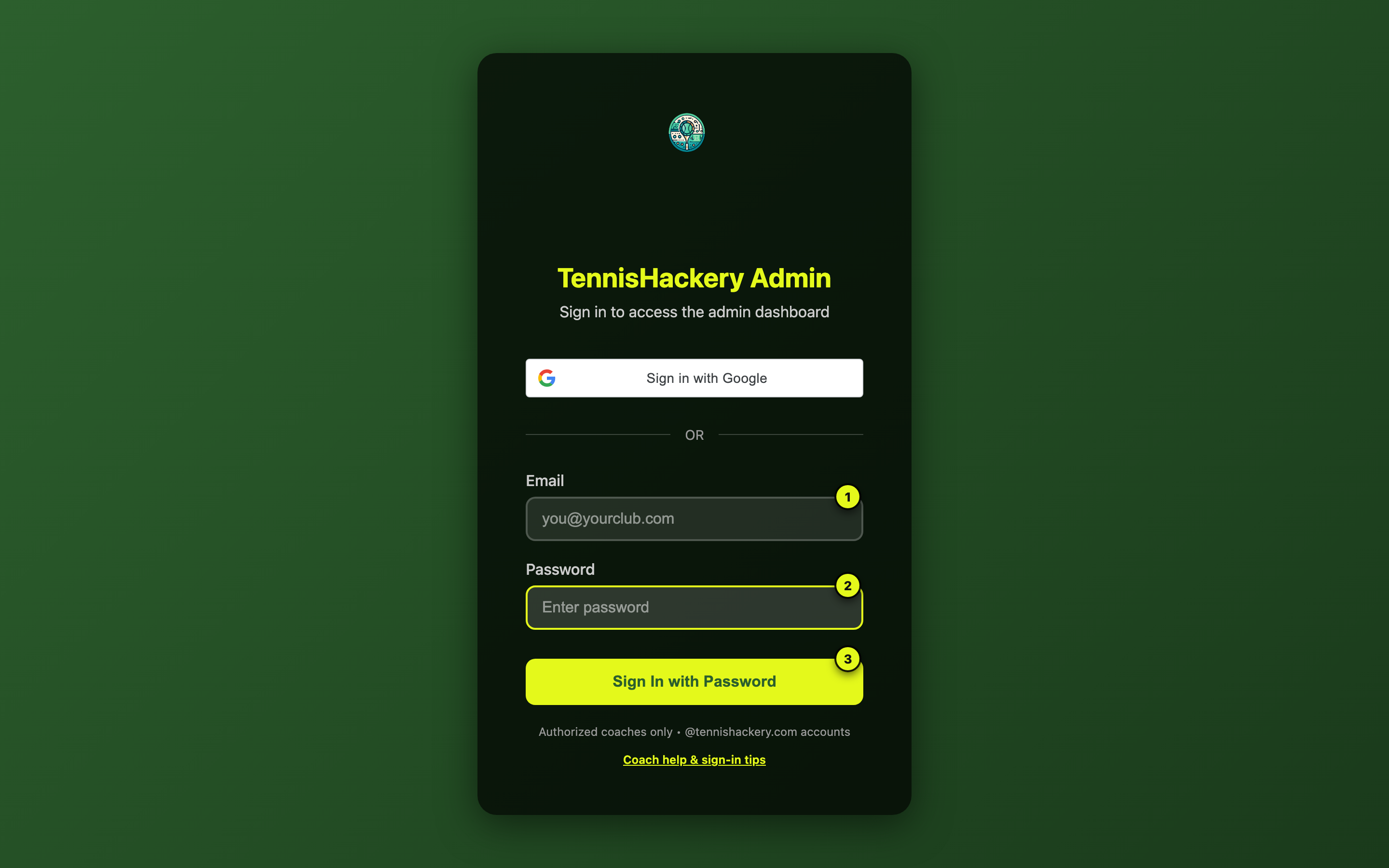
Sign in with your Google account (easiest) or with your email and a password. You'll stay signed in for about a day; after that you'll be sent back here to sign in again.
Login
1
Email — the address your club set up for you
2
Password
3
Sign in with Password — or use Google above
After you sign in, you'll see the matches board. If you're using a shared computer, click Logout in the top right when you're done.
The top bar
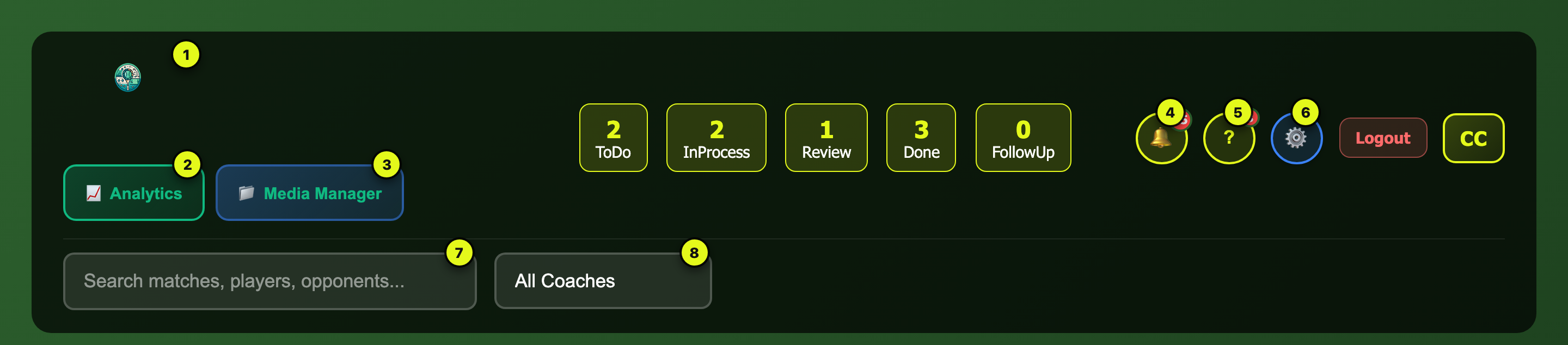
The strip across the top is your main menu. Every tool you'll use is up here, and it stays at the top of every screen so you can always get back to it.
Top bar
1
Logo — click to go back to the matches board
2
Analytics — opens the stats tool in a new tab
3
Media Manager — your drill videos and student files
4
Notifications — recent activity on your matches
5
Help — this guide
6
Settings — your profile, password, preferences
7
Search — find a match by player name, opponent, or code
8
Coach filter — show only matches for one coach
The big numbers in the middle (ToDo, In Process, Review, Done, Follow Up) show how many matches are at each stage. Click any of them to see just that column.
The matches board
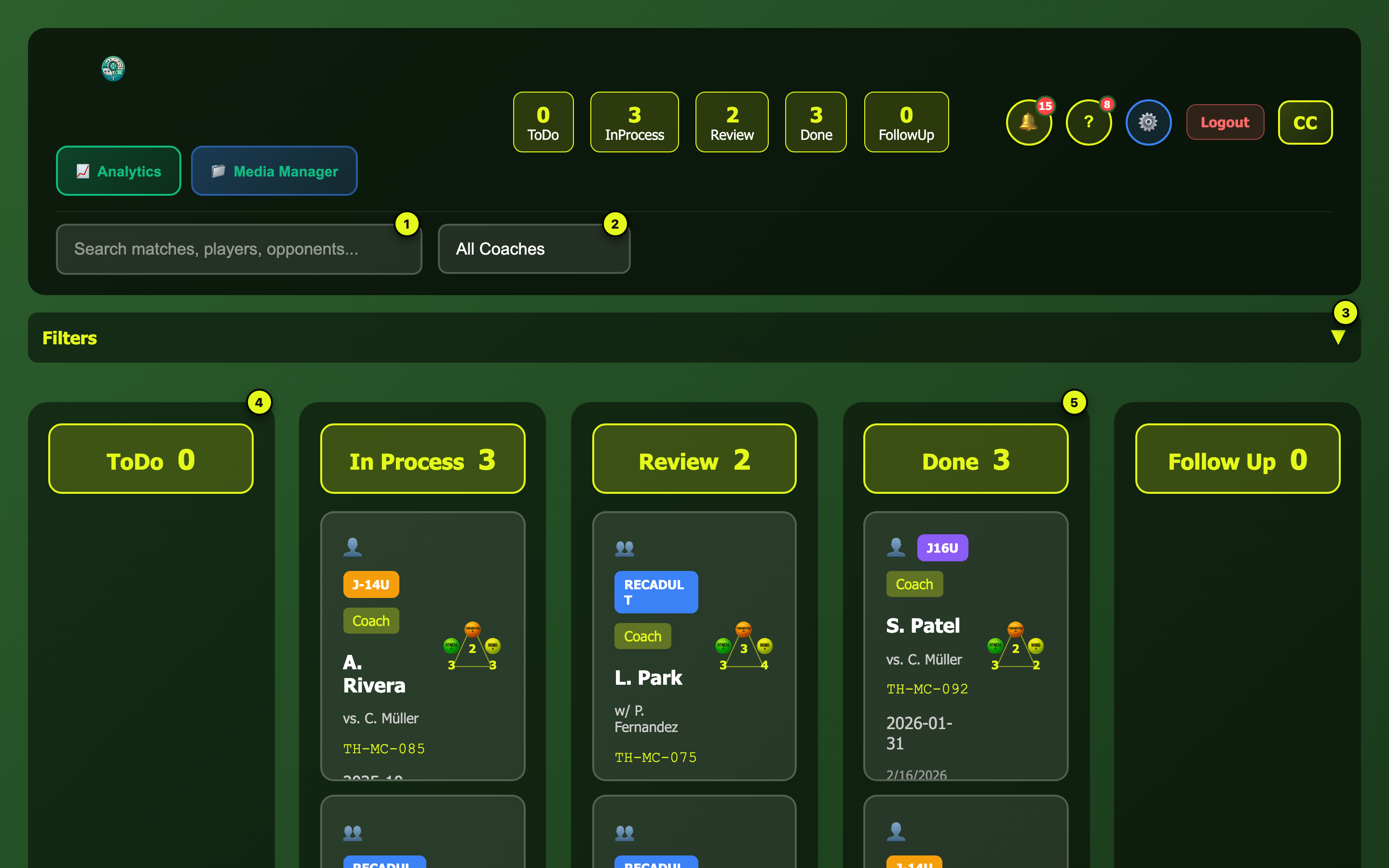
This is your daily queue. New match requests arrive on the left in ToDo and move right as you work on them: ToDo → In Process → Review → Done, with Follow Up for anything you are parking.
You do not move matches here — they move themselves. A match's column is worked out from the reports underneath it. Publish the last report and the match lands in Done on its own. To move a match, move its reports on the Players board.
The board
1
Search — type a player name, opponent, or match code to find a match fast
2
Coach filter — show only your own matches, or look at another coach's
3
More filters — click to expand for age group, date range, and ratings
4
ToDo — new matches that need to be picked up
5
Done — reports published or ready to go
Dragging a card from one column to the next.
Each card shows the player, opponent/partner, match code, date, and a ratings triangle if scores have been set.
Click a card to open it — that's where all the coaching work happens (see next section).
Drag a card into Follow Up to park a match you are waiting on, and drag it out again when you are ready. This is the one column you set yourself.
You can drag a card between the other columns, but it will not stick — the next time one of that match's reports changes, the column is worked out again and your move is undone. The app tells you when this happens.
Where each column comes from
The reports under a match
The match shows
No reports yet
ToDo
Any report still a draft
In Process
All reports in review or further
Review
All reports published
Done
You parked it
Follow Up — beats all of the above
The least finished report decides. One draft among four published reports keeps the match in In Process, because the work really is not finished.
It moves backwards too. If a match is in Done and you add a report for another player, the match returns to In Process — there is a draft under it again, so it is no longer finished.
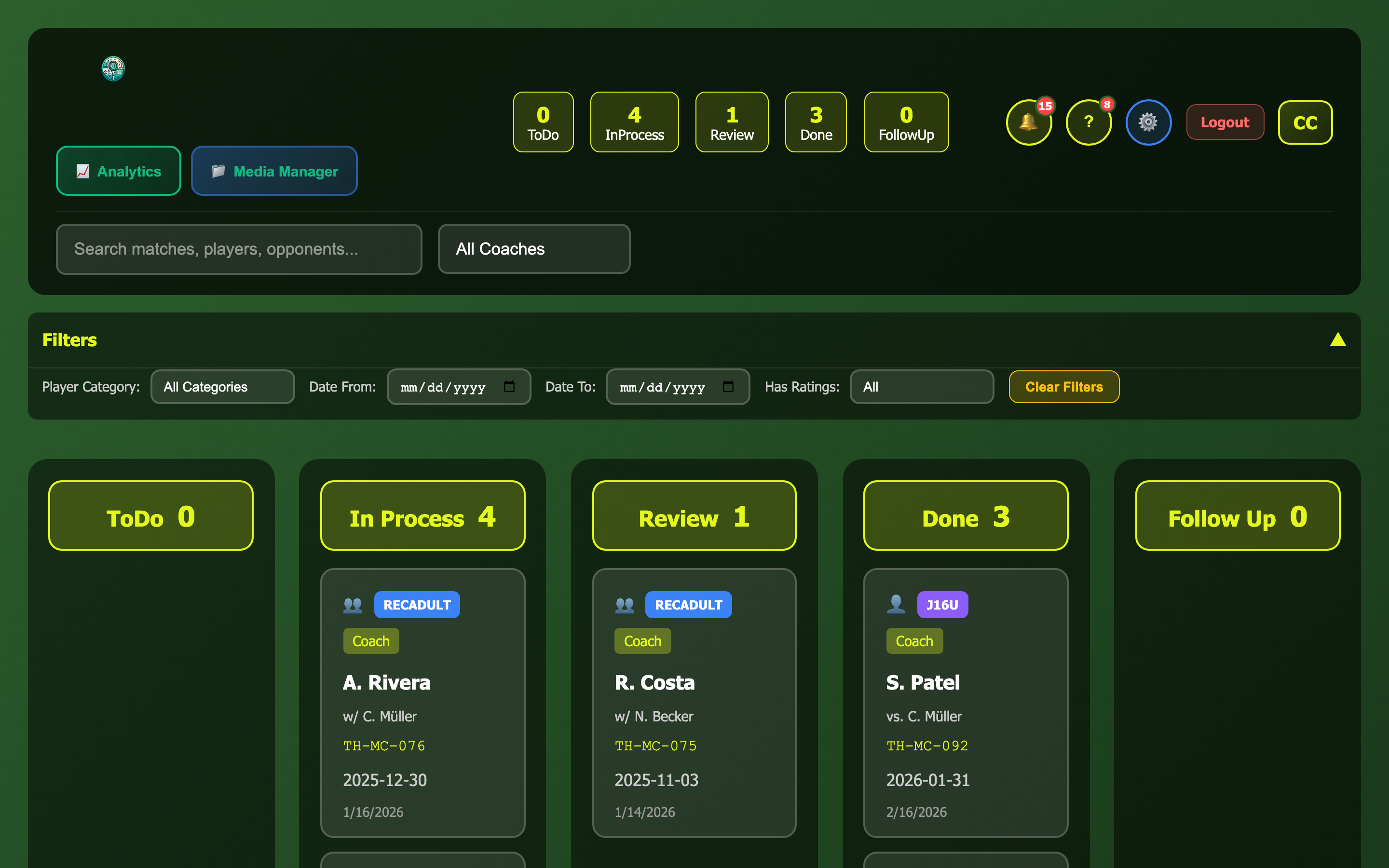
Filters expanded
Click Filters to narrow by player category, date range, or whether ratings have been set. Clear Filters resets everything.
The players board
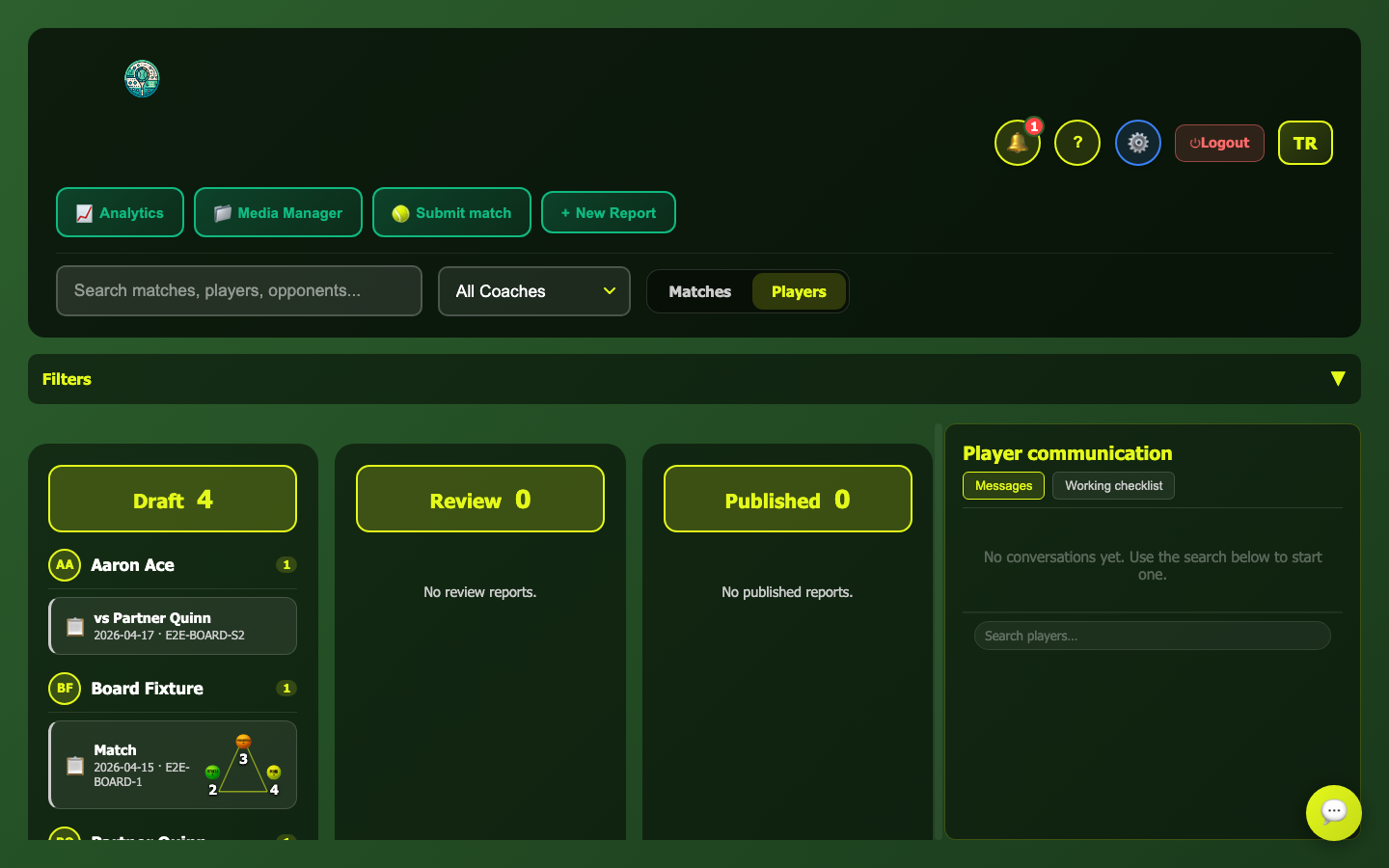
The Players toggle at the top of the dashboard switches from matches to reports. A match can have a report for each person who played, and this is where you move them along.
This is the board that actually moves things. The matches board reflects your work; this one drives it. Moving a report here is a real action, and the match's column follows on its own.
Reports grouped by player, in three lanes
Reports sit in three lanes, grouped by the player each one is about. Drag a report from one lane to the next:
Move
What happens
Draft → Review
Marks the report ready for review
Review → Draft
Removes that mark
Draft or Review → Published
The report goes live to the player
Published → Review
Withdraws it from the player
Published → Draft
Not allowed — withdraw it first, then move it back
Published → Draft is two changes at once to something a player can already see, so it is deliberately two deliberate steps.
Click a report to open that player's match page, with the report builder ready.
Each player appears in every lane where they have work, so one match can show up more than once.
On a phone: there are no lanes to drag between, so each report has a ⋯ button. Tap it and pick where the report should go — the list only ever offers moves that are allowed from where it is now, and each one says what it does before you choose it.
Publishing the last outstanding report moves the whole match to Done on the matches board, without you touching it. Adding a new report to that match later moves it back to In Process — there is a draft under it again.
Inside a match
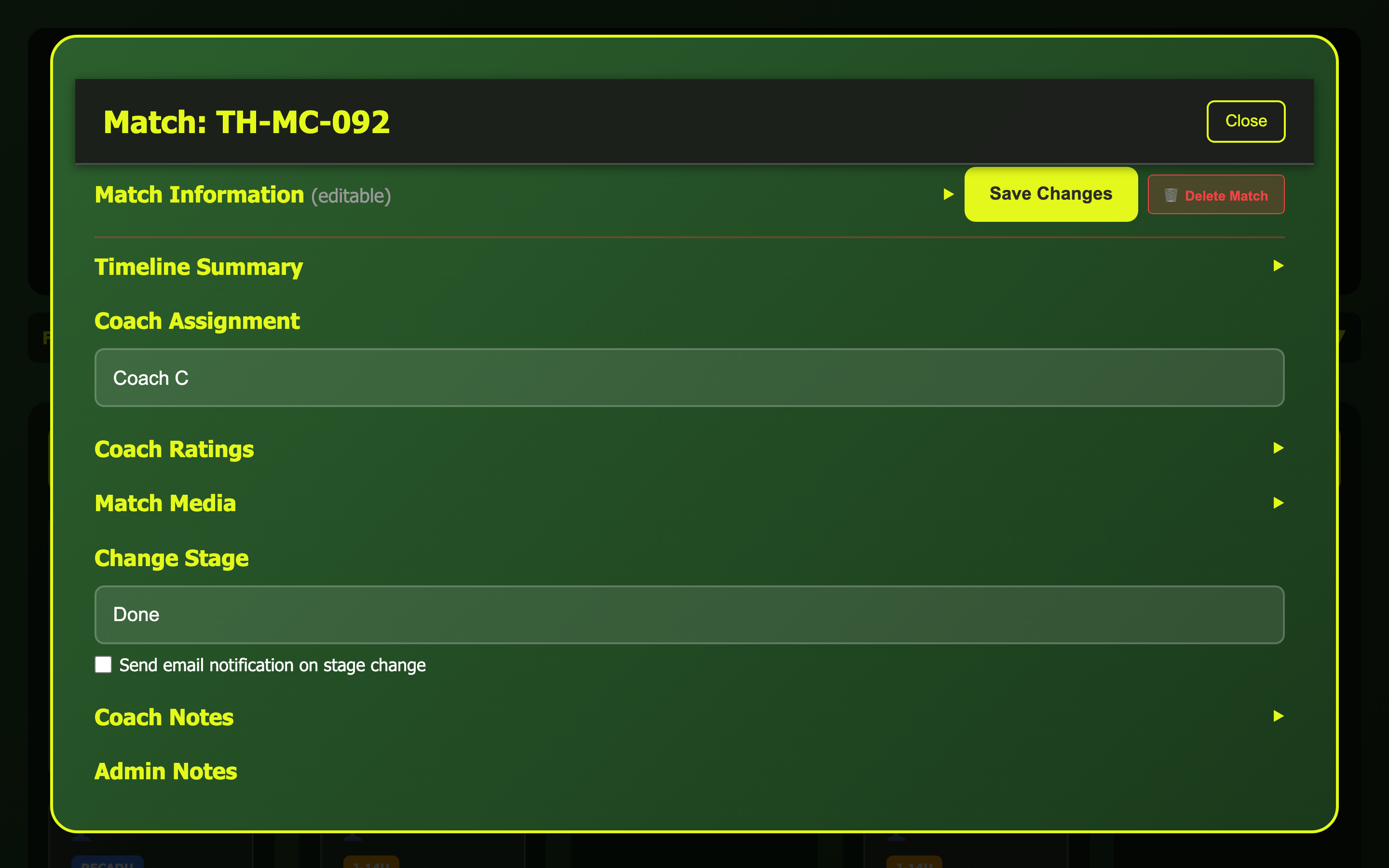
Click any card on the board to open the match workspace — a calm, focused view with all your coaching tools for that one match. On a wide screen there's a navigation rail on the left and a single focused content column on the right: click a rail item to jump straight to that tool. On a phone the rail becomes a swipeable chip strip across the top — swipe or tap a chip to move between tools.
Match workspace — nav rail + focused column
The title bar shows the passcode and a coloured pill with the current stage and assigned coach. Three small icons next to Close are quick shortcuts: 📊 Match Analytics (stats in a new tab), 👤 Player Stats (player dashboard in a new tab), and 📄 Report Builder (jumps to the report tool and opens it).
The match details (names, dates, video link, plus Save Match Info and 📧 Email Player) sit at the top. Everything else is reachable from the nav rail / chip strip — assignment, stat notes, ratings, notes, media, the report builder, and history.
Match Media is for files tied to this match. Media Manager (in the top bar) is your full library of drills and reusable content.
Tools in the nav rail (chip strip on mobile)
Match Information · names, dates, video link — editable. Header has Save Match Info and 📧 Email Player.
Coach Assignment · pick the coach who owns this match
Stat Notes · internal stat notes (will be auto-filled by the AI report generator). Player never sees these.
Coach Ratings · Fundamentals / Fitness / Mind meter-cards
Match Media · upload clips, photos, PDFs for this match
Coach Notes · type or record a voice note
Report Builder · build and publish the report (also reachable from the 📄 header icon)
Timeline Summary · combined event list for this match
Stage History · only shown when there's history to display
Danger Zone · superadmin only — Delete Match (cascades to all related data)
Stage changes: a match's column follows the reports under it, so there is nothing to set here. Move a report on the Players board and the match follows. Use Follow Up on the matches board to park something you are waiting on.
📧 Email Player sits in the Match Information header. Use it any time you want to send the player a status update — it doesn't change the stage.
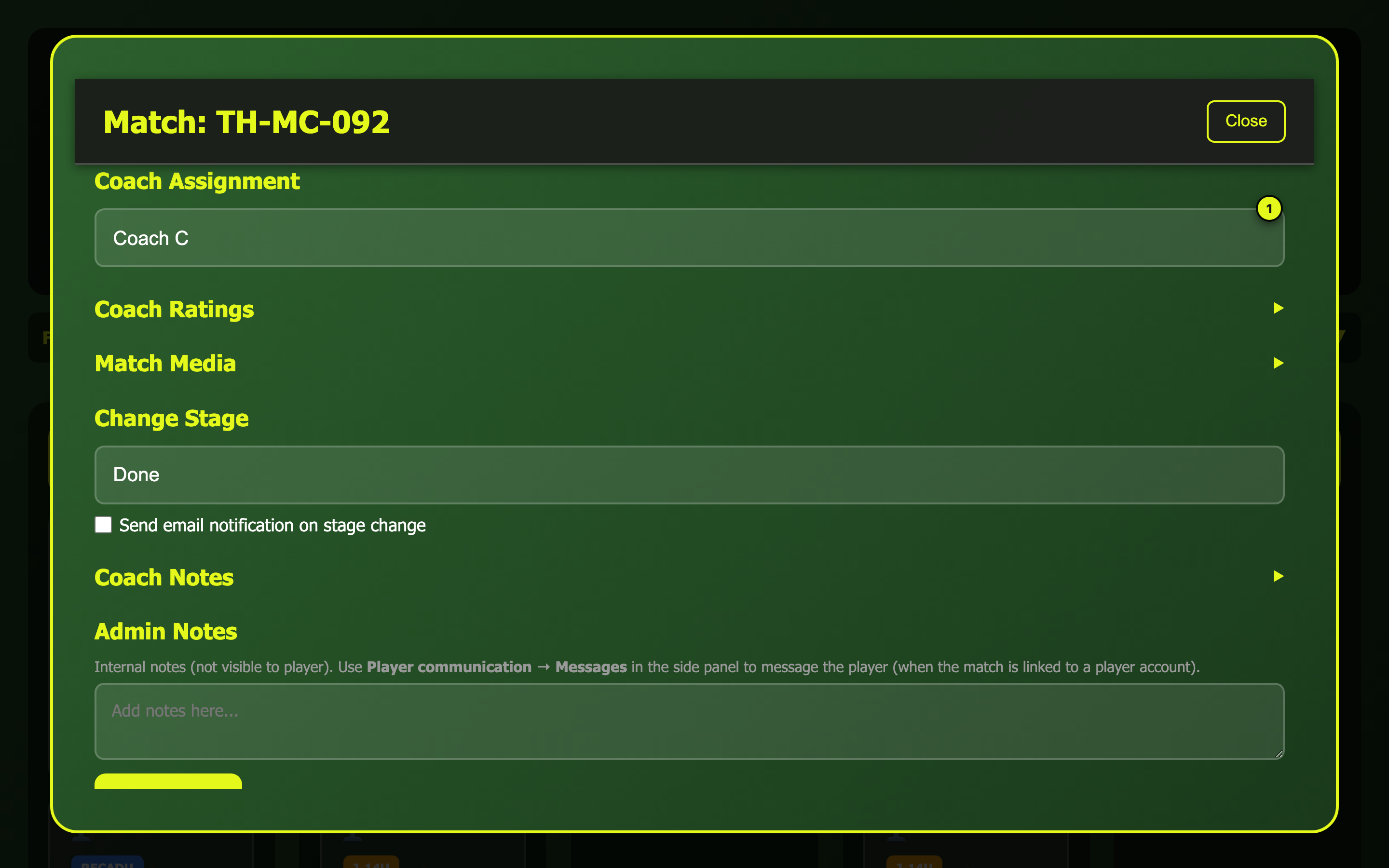
Coach assignment
Coach Assignment
Pick the coach who will be working on this match. Do this first — any notes you leave and ratings you set will be credited to whoever is assigned here.
If you reassign the match later, the earlier notes and ratings stay under the original coach's name. New notes will go under the new coach.
Coach notes & voice
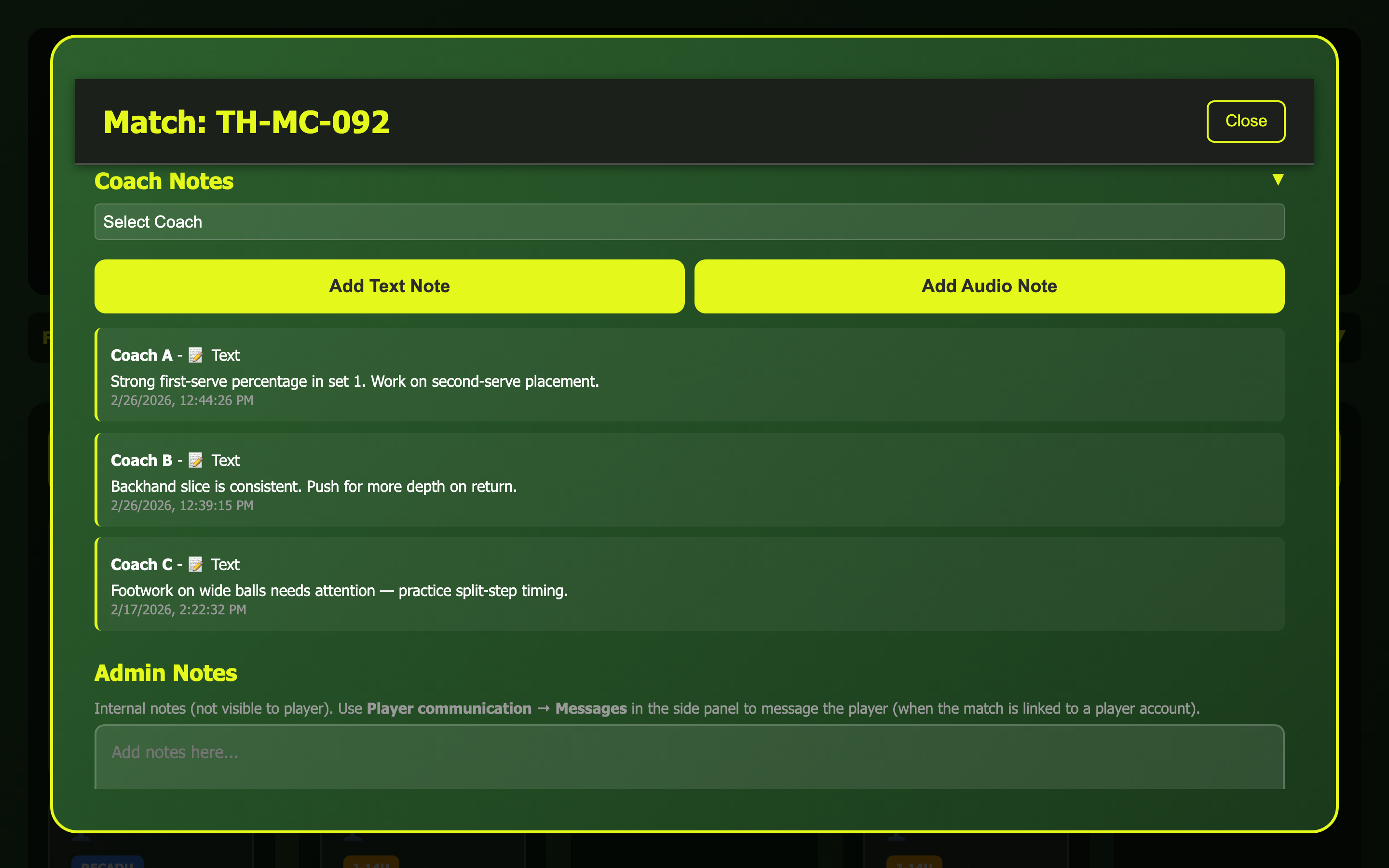
Coach Notes
Use Add Text Note when you want to write up something detailed — great for post-session observations you'll refer back to.
Use Add Audio Note when you're watching a video and want to talk through what you see without stopping to type. Click the button to reveal the recorder, press Start, say your piece, press Stop, then Save. The recording is saved along with an automatic transcript.
Opening the voice recorder — hit Start, talk, then Stop and Save.
All your notes appear in the list with your name and the time you wrote them. Older notes from other coaches show up too.
Your player never sees these notes — they're private to the coaching team. If you want to share an observation with the player, add it to the report instead.
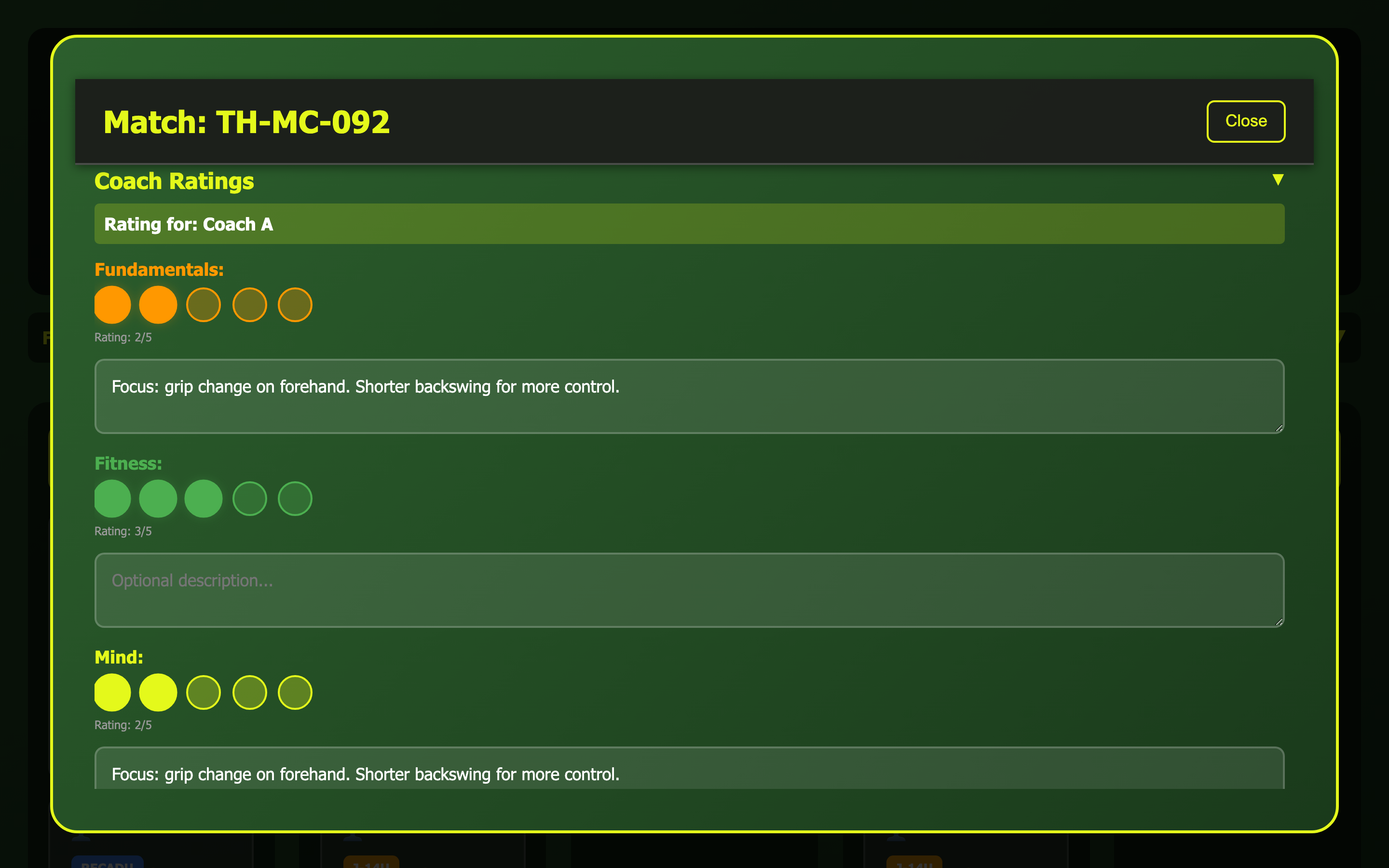
Coach ratings
Ratings — Fundamentals / Fitness / Mind meter-cards
Rate the player on three areas. Each area is a meter-card: the label, a row of meter dots, and the score all sit on one line, with a note field below where you can type a short reason for the score. Set the score by clicking along the dots (0 to 5), then hit Save Ratings — the card on the board updates its triangle right away.
Fitness — conditioning, movement around the court, endurance.
Mind — shot selection, pacing, handling pressure.
These ratings also appear on the player's profile, so the student can track their progress over time.
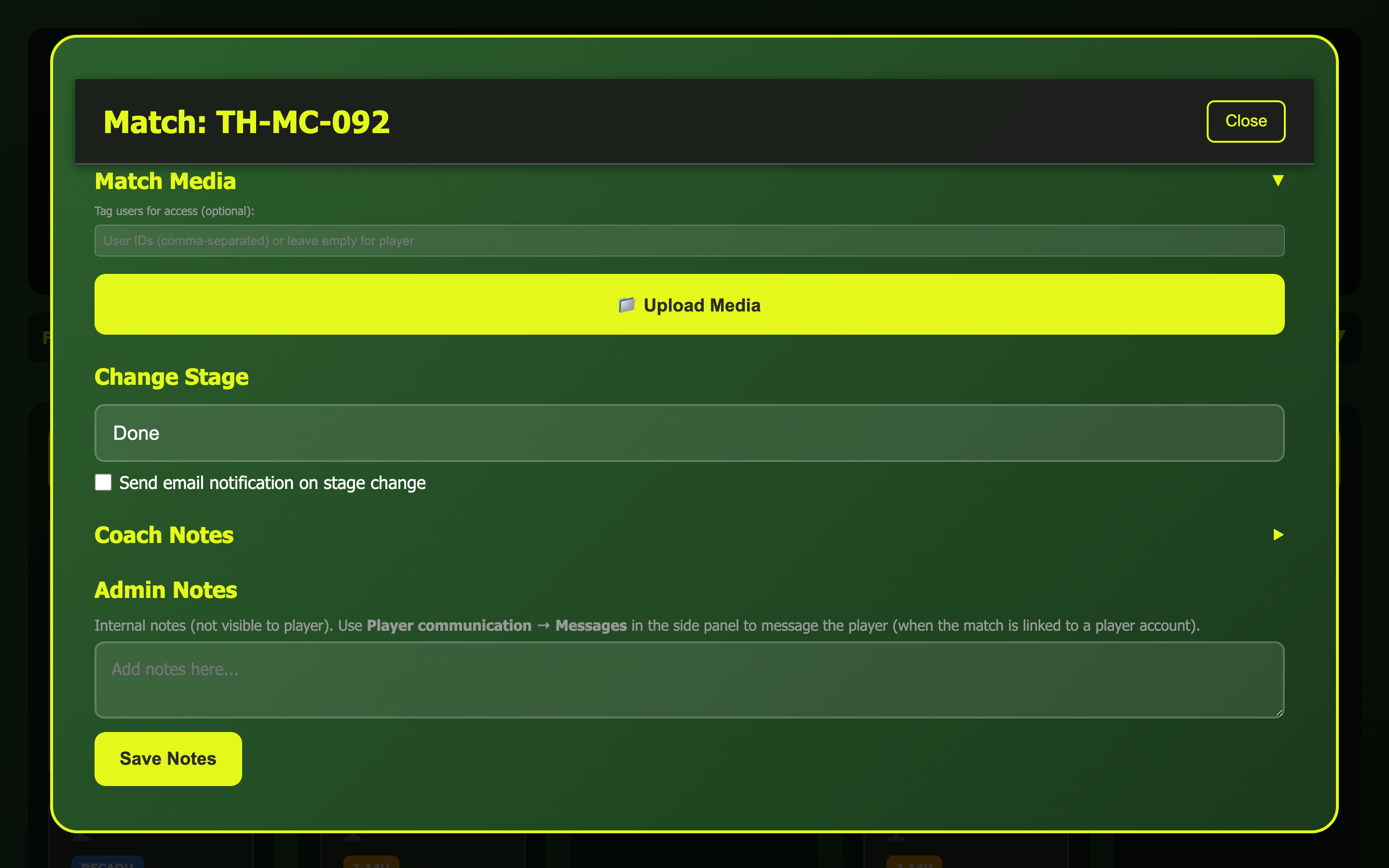
Match media
Match Media
Upload files that belong to this match only — for example, a short clip of a key rally, a photo of the player's grip, or a PDF of the original match sheet.
You can tag one or more students on any file you upload. Tagged students will see that file in their own dashboard.
If you have a drill video or a template that you use with many players, put it in the Media Manager (top bar) instead. Match Media is just for this one match.
Report builder
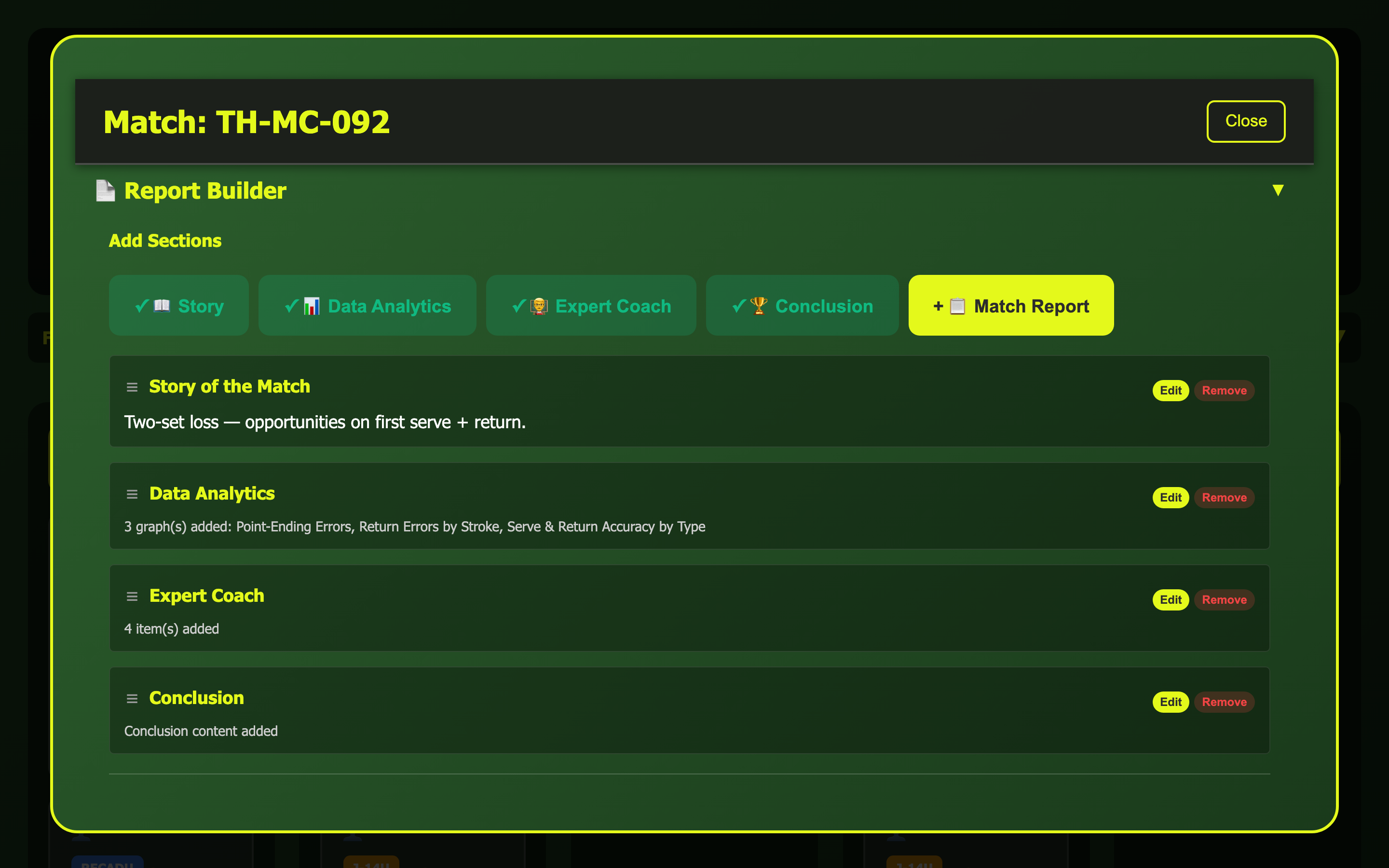
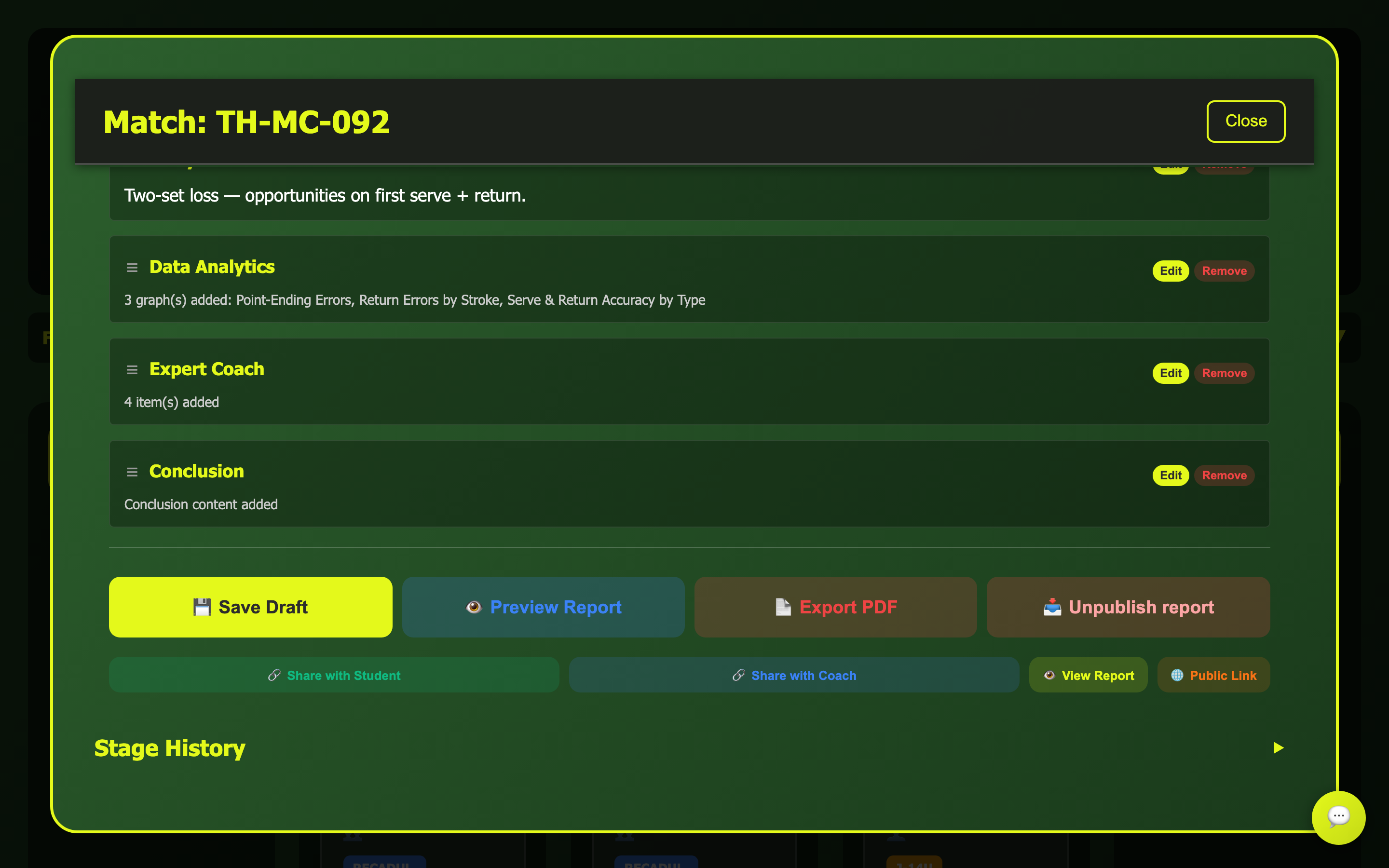
This is where you build the report that your player will actually see. You add sections, drag them into order, preview, and publish. Once published, the player can open it on their dashboard.
Story of the Match — a short narrative of how the match went, written by you.
Data Analytics — charts and graphs. Open Analytics from the header, find a chart you want, and click Add to Report — it appears here automatically.
Expert Coach — your coaching content: written tips, video links, uploaded clips or drills from your library.
Conclusion — wrap up with positives and things to improve for Fundamentals, Fitness, and Mind.
Match Report — the overall summary.
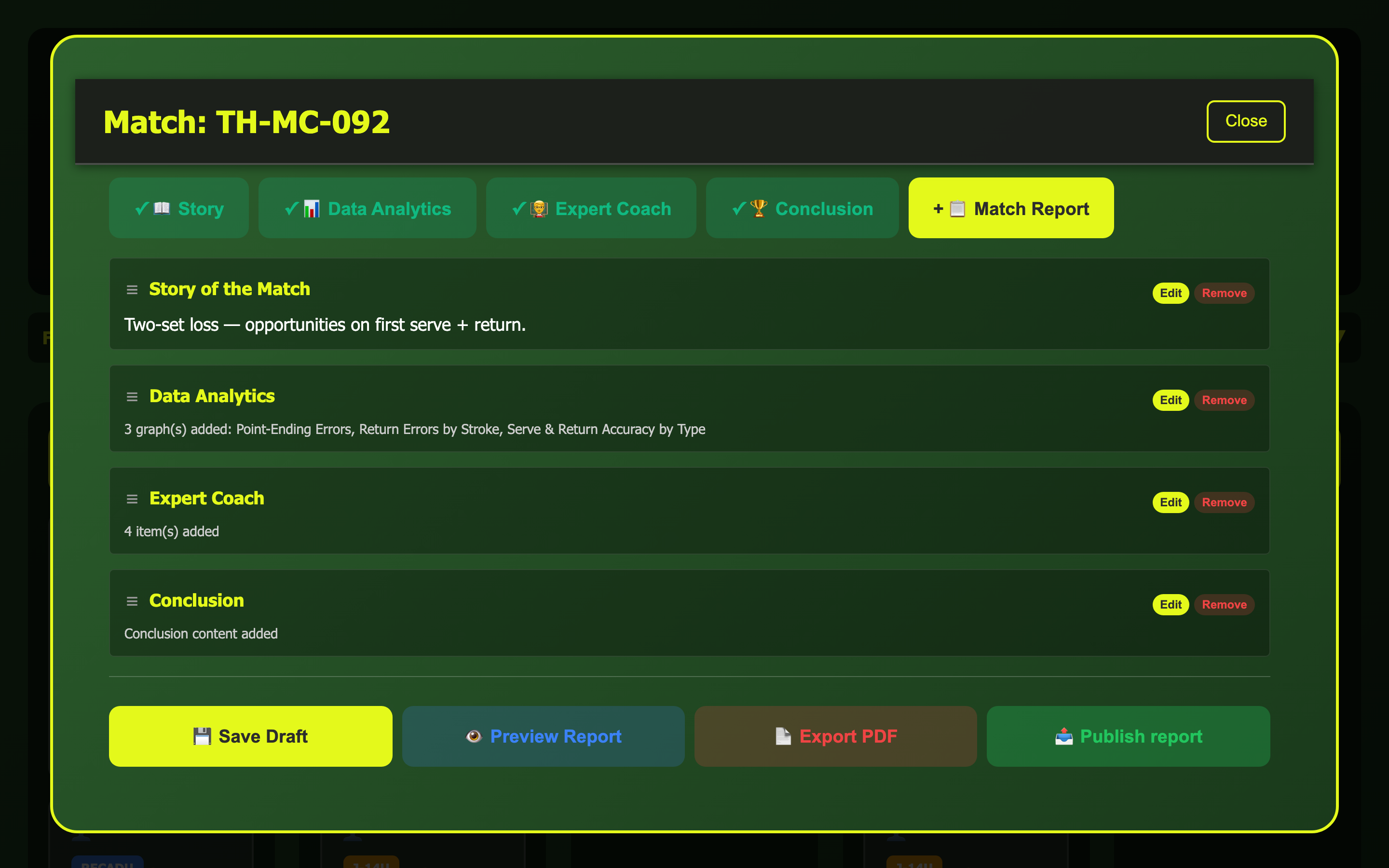
Action buttons at the bottom
Scrolling through the report sections and action bar.
Each section is a tidy card with Edit (to add content) and Remove. Drag the ☰ handle on the left to reorder sections. When the report is ready:
Save DraftPreview ReportExport PDFPublish report
Save Draft — save your work without publishing. Always save before previewing.
Preview Report — see exactly what your player will see.
Export PDF — download a copy for your own records.
Publish report — make it live. The player gets a notification and can open it on their dashboard.
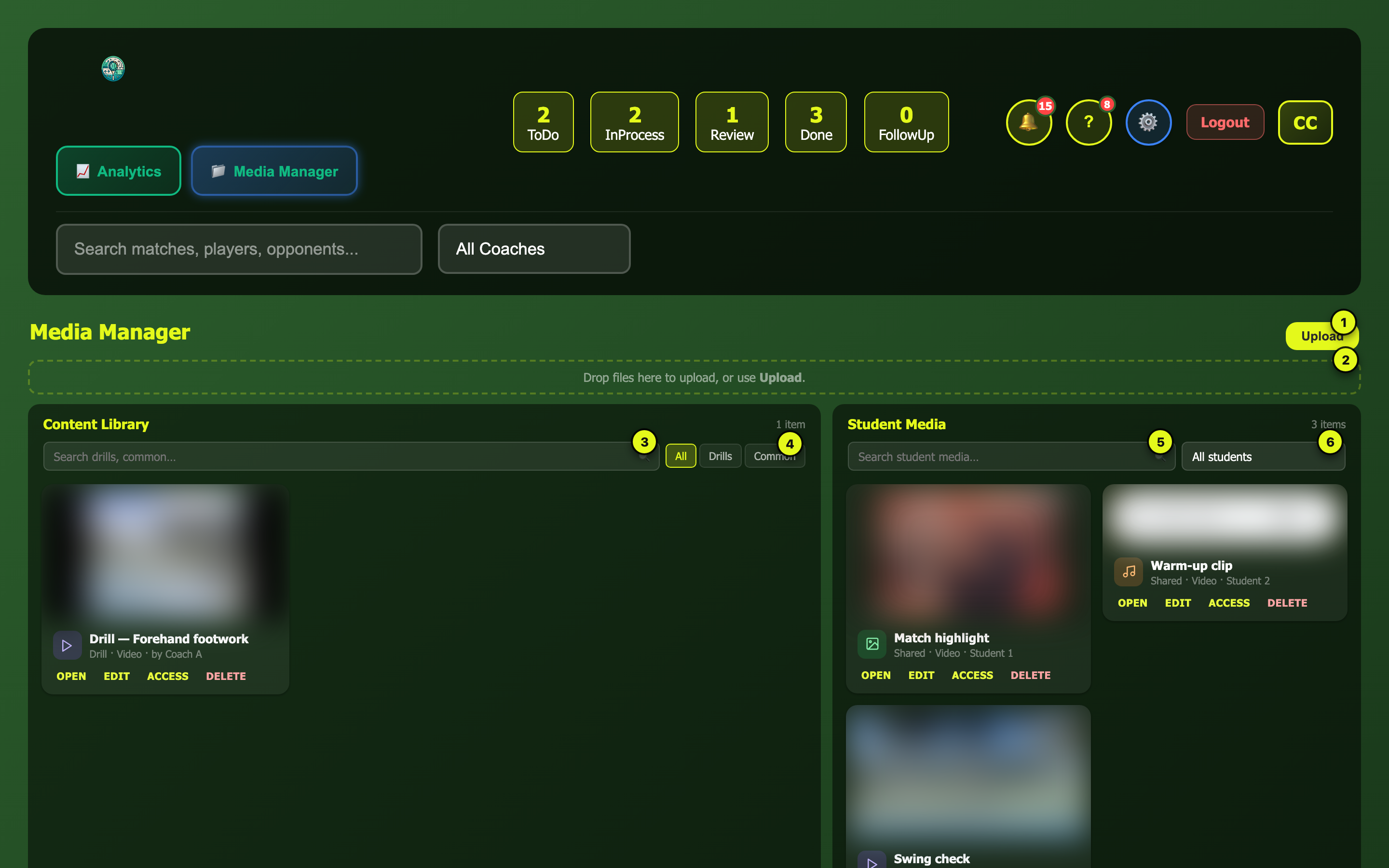
Media Manager
This is your library of drills, templates, and student files — anything you want to reuse across many matches. Two panels: Content Library on the left (your drill videos and common templates) and Student Media on the right (files shared with specific students).
Media Manager
1
Upload — opens the upload window
2
Drop zone — drag a file from your desktop directly onto this area
3
Library search — search through your drills and common content
4
Library tabs — All / Drills / Common
5
Student media search
6
Student filter — show files for one student only
Every file card has Open, Edit, Access (choose which students can see it), and Delete.
Content Library items are visible to all your students.
Student Media is private — a student only sees files you've specifically shared with them.
When you're building a report, the Expert Coach section lets you pull in any drill or clip from here. Build your library once, reuse it in every report.
Player communication
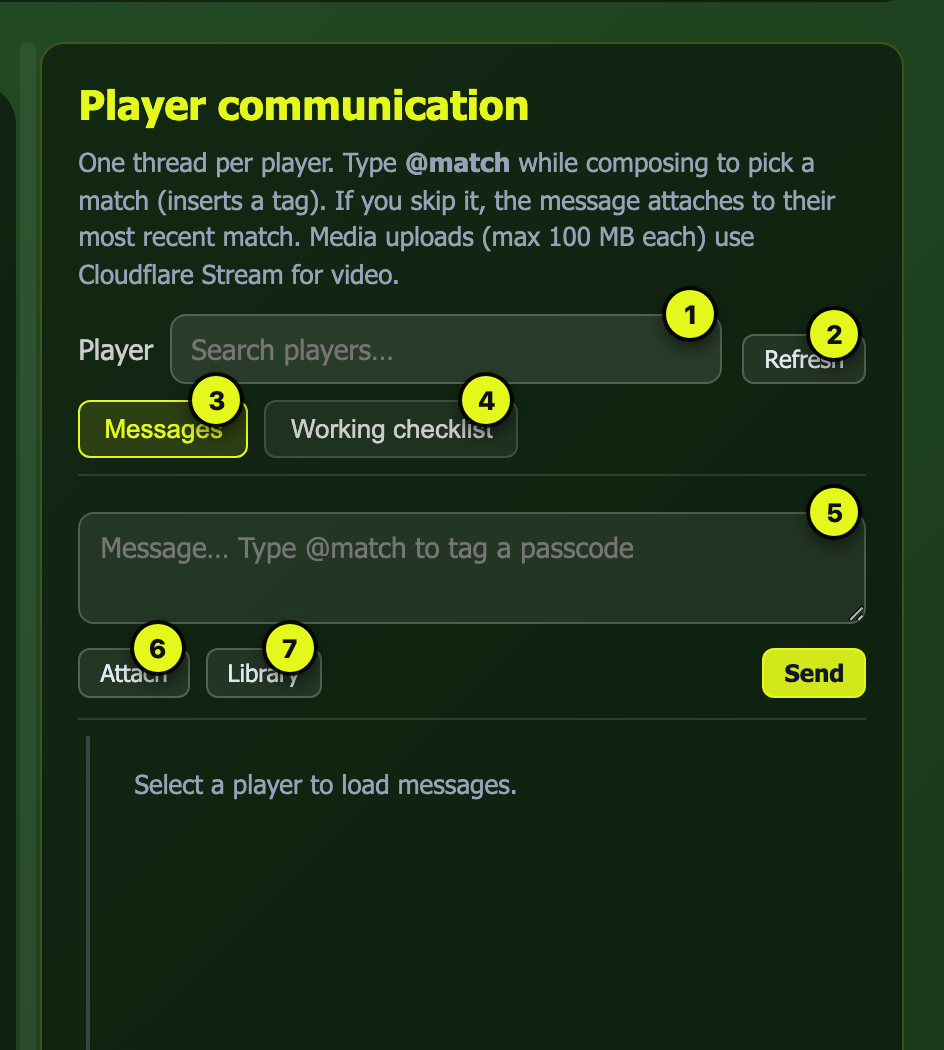
The panel on the right side of the board is your messaging tool. Each player has their own thread — use it for coaching notes, follow-ups, file sharing, or quick check-ins.
Player communication
1
Player — search by name to open their thread
2
Refresh — reload the conversation
3
Messages tab — the conversation
4
Working checklist — what the player is working on right now
5
Message box — type here. Type @match to link your message to a specific match
6
Attach — send a video, photo, audio file, or PDF
7
Library — pick a file from your Media Manager to send
Typing a message with @match to link to a specific match.
You can attach files up to 100 MB. Video files are automatically converted for smooth playback.
WhatsApp coaching
You can coach over WhatsApp from your phone — jot notes,
save clips, rate matches, and reply to students between
sessions. Install WhatsApp Business on the
coach phone TennisHackery has on file, then long-press a student's
message and tap Reply before you type.
Use @save, @note, @rate,
and @match to write straight into the match record.
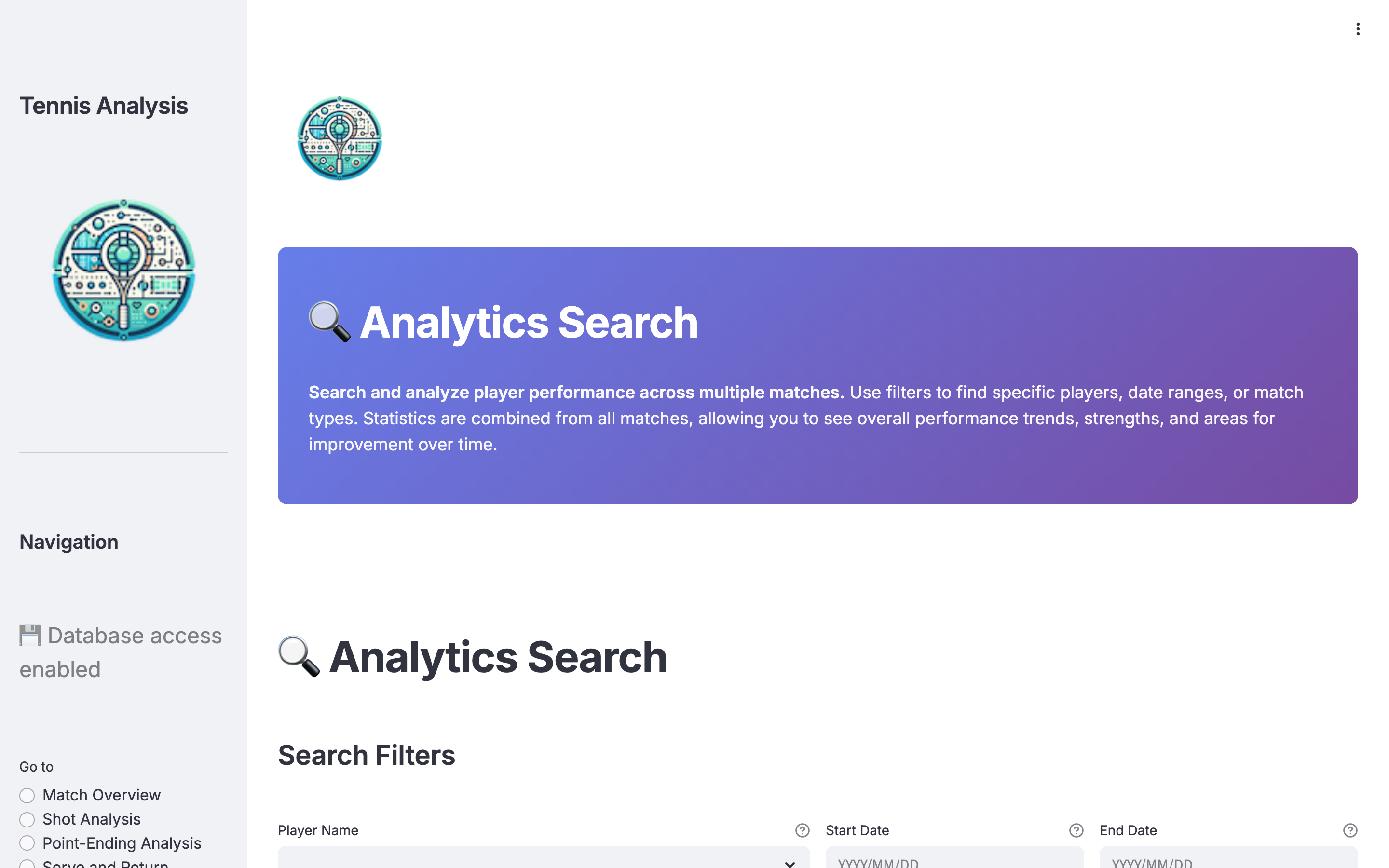
Click Analytics in the top bar to open the stats tool in a new tab. From inside a match, click the 📊 icon at the top of the workspace (next to Close) — it opens the same tool but already filtered to that player's match. The 👤 icon next to it opens the player's full stats dashboard.
Analytics search
Use the filters at the top to narrow by player, date range, or match type.
The menu on the left takes you to different views: Match Overview, Shot Analysis, Point-Ending Analysis, and more.
When you find a chart you want in a report, click Add to Report on it — the chart will appear in your Report Builder automatically.
Make sure your browser allows pop-ups for this site — Analytics always opens in a new tab.
Match Assistant
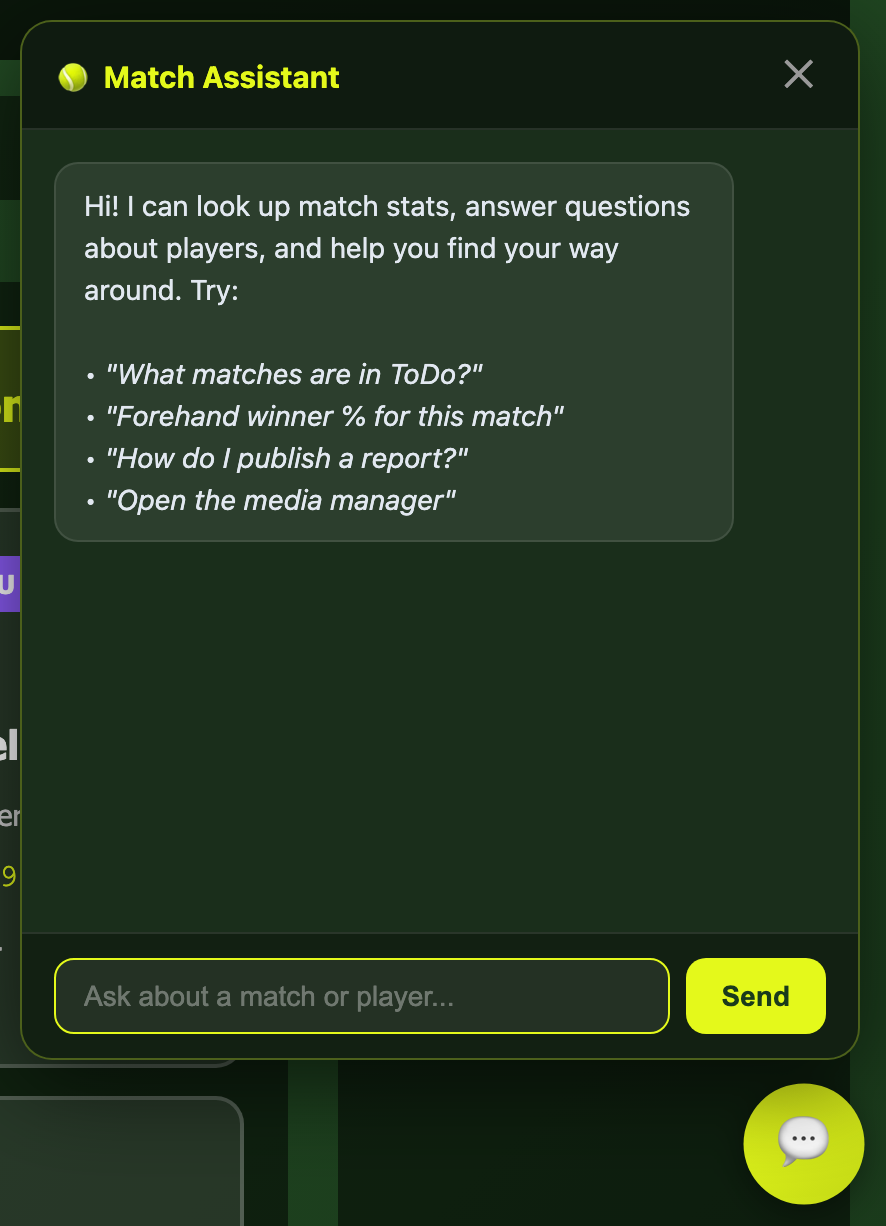
The 💬 button in the bottom-right corner opens the Match Assistant — you can type questions in plain English and get answers from your match data instantly.
Match Assistant
What you can ask:
Match stats — "forehand winner % for this match", "serve speed comparison", "error rate trend across last 5 matches"
Comparisons — "compare Rivera's backhand vs opponent", "head to head: Rivera vs Chen"
Workflow — "what matches are in Review?", "which matches does Coach Alex have?"
How-to — "how do I publish a report?", "where is the media manager?"
Navigate — "open media manager", "go to settings"
If you have a match open, the assistant automatically scopes questions to that match. Charts appear inline when the question involves trends or comparisons.
The assistant can also show you charts — ask "show me serve speed trend" and a bar or line chart will appear right in the chat.
Report sharing
After building a report, you can share it with players, other coaches, or anyone — each with a different kind of link.
Share buttons in report builder
Share with Student — copies a link the player can open after signing in. If the report isn't published yet, they see a "your coach is still working on it" message.
Share with Coach — copies a link that opens the admin dashboard and goes straight to the report builder for this match.
View Report — opens the published report in a new tab so you can see exactly what the player will see.
🌐 Public Link — creates a special URL that anyone can view without signing in. Use this for marketing or sharing with parents. You'll see a warning banner when a report has a public link.
Public links expose the report to anyone with the URL. You can revoke a public link at any time from the report builder or from Settings → Privacy.
Privacy settings
Superadmins can review and manage all public report links from Settings → Privacy.
Count — see how many reports currently have public links.
Review — a table shows the match code, player name, date, and when the link was created.
Revoke Selected — check individual reports and revoke their public links.
Revoke All — removes all public links at once. Old URLs stop working immediately.
Public links contain a random token — they can't be guessed. But anyone who has the link can see the report, including player names. Review periodically.